@ Mentions & References
Recently updatedUse @ to reference workspace files in chat or mention people in comments — the universal way to point at things in Grantable.
Last updated Mar 26, 2026
@ is how you point at things
The @ symbol does one thing everywhere in Grantable: it points. In chat, it points the AI at files and folders so it has context for your request. In comments, it points at people — teammates, external contacts, or the AI itself — to loop them into a conversation. Same gesture, different context.
Once you internalize this, you’ll use @ constantly. It’s the fastest way to give the AI exactly the context it needs and the simplest way to collaborate with your team.
In chat: reference files and folders
Type @ in the chat input and a picker appears showing your workspace files and folders. Select one and it appears as a pill in your message — the AI reads that file as part of your request.
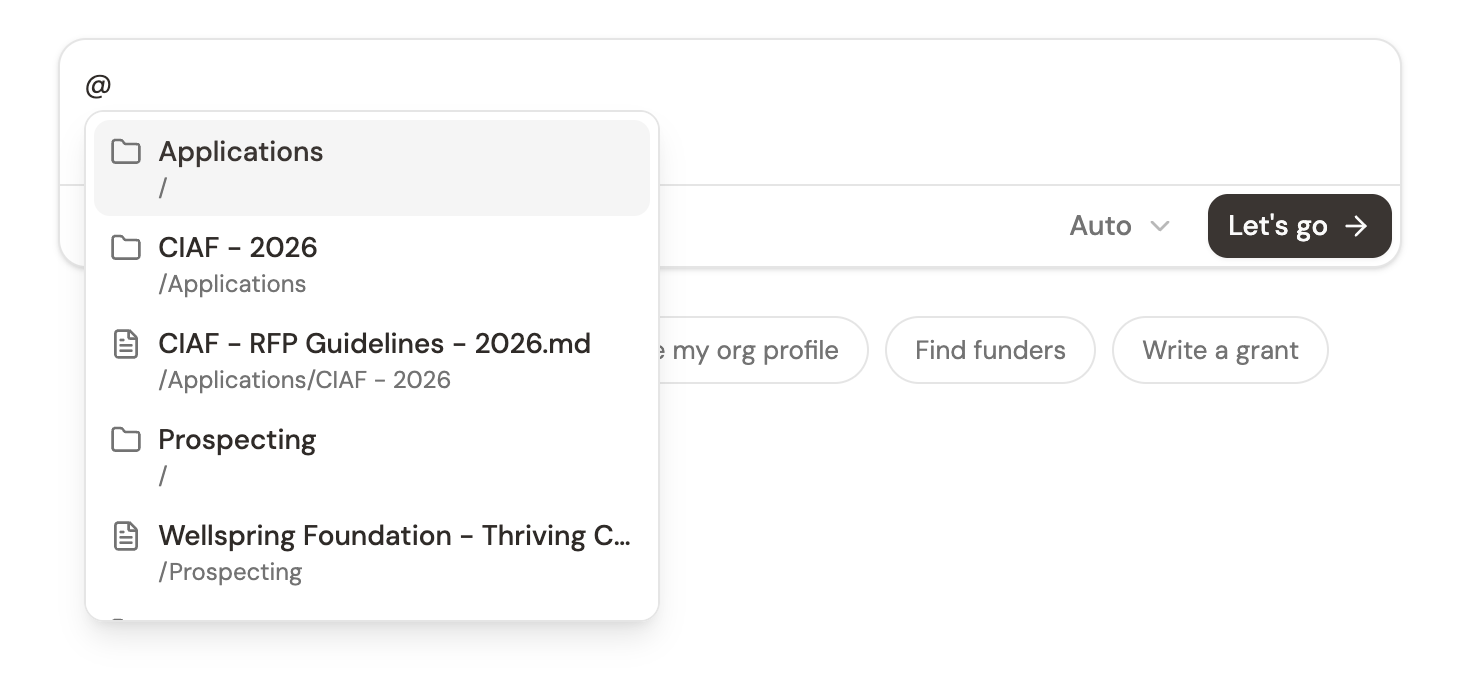
This is different from attaching a file with +. Attachments upload new files into the conversation. @ references files already in your workspace — documents you’ve uploaded before, files the AI created, templates, boilerplate, profiles, anything in your file system. No re-uploading, no duplicates.
Why this matters
Every file you @ reference becomes context the AI works with. This means you can:
- Ground the AI in specific documents — “Review this draft against @/Applications/NSF/RFP.pdf” tells the AI exactly which RFP to check against, not whichever one it might guess.
- Reference templates to guide output format — “Create a Grant Opportunity Brief for this funder using @/Skills/prospecting/Grant Opportunity Brief.md as the template.” The AI follows the structure of the referenced file rather than improvising.
- Pull in your boilerplate — “Draft a needs statement using @/Library/Boilerplate.docx for our standard language.” The AI adapts your approved language rather than generating from scratch.
- Combine multiple sources — You can @ reference several files in one message. “Compare @/Applications/NSF/Budget.xlsx against @/Library/Actuals-2025.xlsx and flag any discrepancies.”
The picker searches by file name and path. Start typing after @ to filter — if you have a lot of files, type the first few letters of the filename to narrow the list quickly.
The template reference pattern
One of the most powerful uses of @ is referencing a template to control what the AI produces. Instead of hoping the AI formats things the way you want, point it at an example:
- Grant Opportunity Brief — “Evaluate this RFP and produce a brief following @/Skills/prospecting/Grant Opportunity Brief.md”
- Custom reports — “Write a board report following the format in @/Library/Board-Report-Template.md”
- Consistent proposals — “Draft this section matching the tone and structure of @/Applications/Gates/Narrative-Final.docx”
This works because the AI reads the referenced file and uses it as a structural guide. The output follows your template rather than the AI’s default format. It’s especially useful when your organization has specific formatting requirements or when you want consistency across multiple applications.
Tip: If you find yourself repeatedly referencing the same template, consider creating a custom skill that includes it automatically. See Creating your own skills.
In comments: mention people
When you’re working on a document and leave a comment, type @ to mention someone. The picker shows your workspace members, and you can also type any email address to mention someone outside your team.
Three types of mentions:
- Team members — Select a workspace member and they get notified about the comment. Their name appears as a blue pill in the comment thread.
- External contacts — Type a full email address (like
partner@example.org) and they receive an email notification with the comment context. Their address appears as a purple pill. - Grantable AI — Select “Grantable” to direct a comment to the AI. It appears as a green pill, and the AI can respond to your note in context. Useful for asking the AI to revise a specific section without leaving the document.
Mentions in comments are how you bring people into the conversation at the right moment — when you need a colleague to review a specific paragraph, when you want to ask an external partner to verify a data point, or when you want the AI to rework something you’ve flagged.
Tip: You can @ mention the AI in a comment to get targeted feedback on a specific part of a document. Instead of switching to chat and explaining which section you mean, just highlight it, comment, and @ Grantable with your question.
Combining @ with other input methods
The @ reference works alongside everything else in the chat input:
- @ + attachments — Reference existing workspace files with @ and attach new files with + in the same message. “Compare this new RFP (attached) against our previous application @/Applications/NSF/Narrative.docx”
- @ + skills — Start with a slash command and add @ references for context. “/grant-writing Start the application using @/Library/Boilerplate.docx and the RFP I just uploaded”
- @ + selected text — Select text in the context panel, add it to chat, then @ reference additional files for comparison
The more context you provide in a single message, the better the AI’s response. @ is the fastest way to add context without re-uploading or copy-pasting.
What’s next?
- AI Chat — How conversations work, structured questions, and live tables
- Skills & Slash Commands — Structured workflows that pair powerfully with @ references
- Managing Conversations — Search, rename, and organize your chat history