Managing Conversations
Recently updatedHow to find, organize, and get the most out of your chat history — the searchable record of everything you've done in Grantable.
Last updated Mar 26, 2026
Every conversation is a work session you can return to
Every time you start a chat, Grantable saves it automatically. You can return to any conversation and pick up where you left off — the AI remembers the documents it read, the decisions you made together, and the full thread of your discussion.
Over time, your conversations become a searchable record of everything you’ve done: funders you’ve researched, proposals you’ve drafted, reviews you’ve requested. A few simple habits — naming your chats, archiving finished ones, starting fresh when you switch tasks — keep that record easy to navigate as it grows.
Finding anything: chats, files, and folders in one search
Press Cmd+K (or click Search in the sidebar) to open search. It looks across everything in one place: chat titles, file names, file contents, and folders. By default, it shows your most recent chats and recently edited files — a quick way to jump back into whatever you were working on.
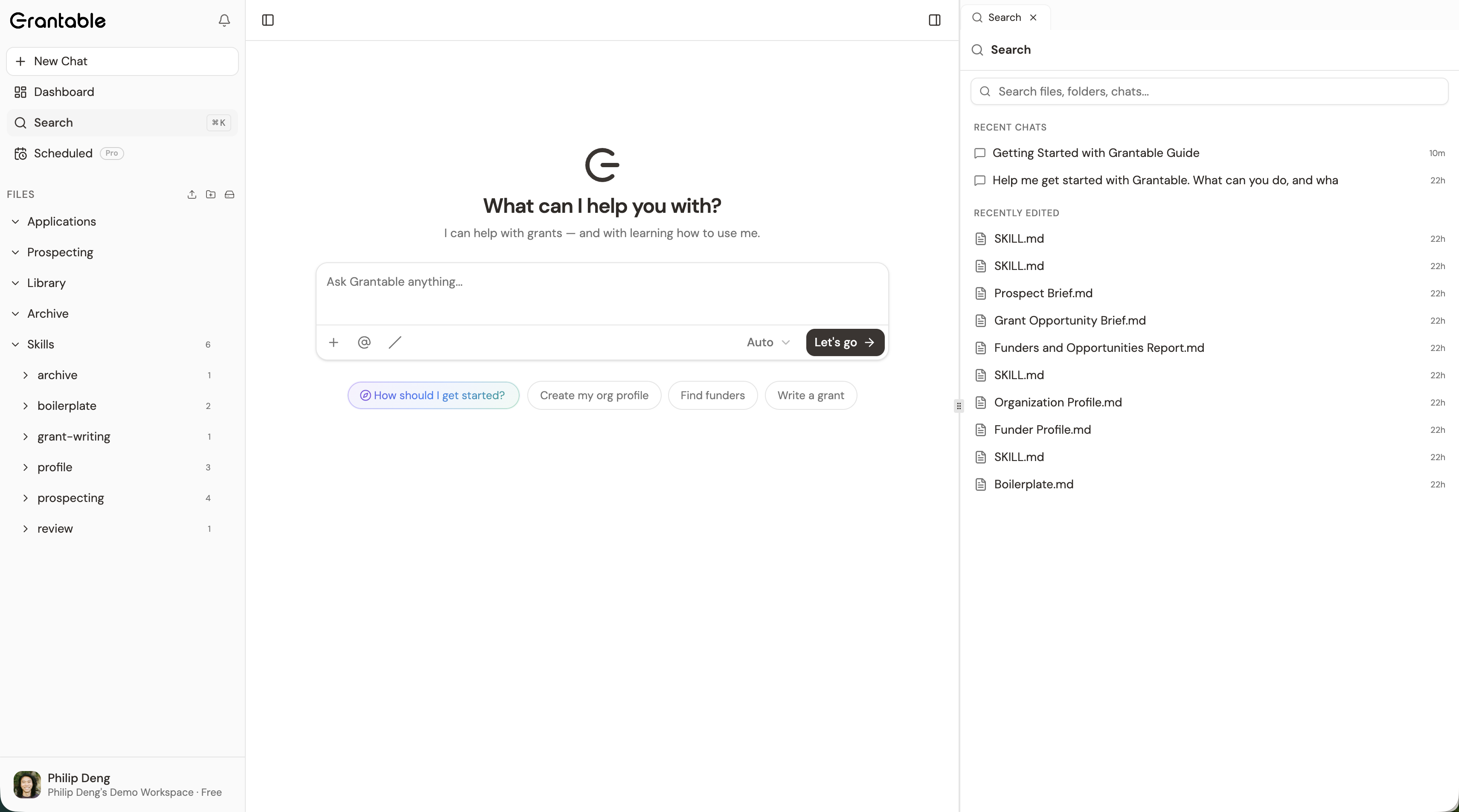
Type a few words — “Meyer Memorial LOI” or “budget review” — and the results show matching chats and files together. Click a chat result to reopen it with its full history.
Tip: Search works best when your conversations have descriptive titles. “LOI Draft — Meyer Memorial” is much easier to find than “New Chat.” More on that below.
Keeping things organized
A few lightweight habits keep your workspace easy to navigate as conversations pile up:
Name your conversations. Include the project, funder, or task type in the title — “Budget Review — NSF STEM Grant” or “Prospecting — Environmental Education.” You can rename a conversation two ways: click the title in the chat header, or use the three-dot menu on any conversation in search results.
Regenerate Title
If you don’t want to name things manually, Grantable can do it for you. Click the chevron next to the conversation title at the top of a chat and select Regenerate Title. The AI reads what you’ve actually discussed in the conversation and generates a descriptive title from the content — turning a generic “New Chat” into something like “LOI Draft — Meyer Memorial Foundation” without you having to think about it.
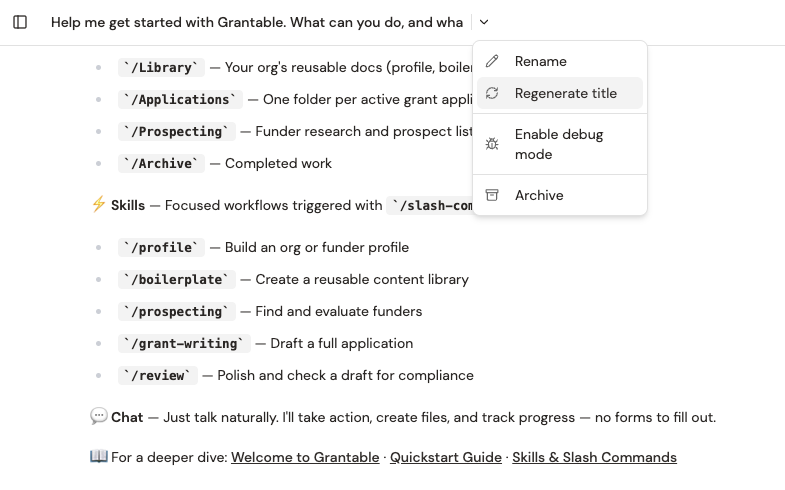
This is especially useful for conversations that evolved beyond their original topic, or when you started a chat without a clear plan and now want the title to reflect what it became.
Archive when you’re done. Use the three-dot menu on any conversation and select Archive to move it out of your recent chats. Archiving doesn’t delete anything — it just keeps your search results focused on active work. Be aggressive about this. Conversations are free to create, so there’s no reason to keep finished threads cluttering your view. Archive as you go.
Tip: Before archiving a long conversation, try asking the AI “Summarize what we’ve done in this conversation.” It gives you a quick recap you can reference later if you need to revisit the work.
When to start fresh vs. continue
One of the most useful habits in Grantable is knowing when to start a new conversation. Here’s how to think about it:
Continue an existing chat when you’re following up on the same topic and the AI’s earlier context is still relevant. If you drafted an LOI yesterday and want to revise it today, reopen that chat — the AI remembers the funder’s requirements, your boilerplate, and the feedback you gave on the first draft.
Start a new chat when you’re switching tasks, working on a different grant, or want a clean slate. New conversations are free, and the AI always has access to your full workspace regardless of which chat you’re in. Nothing is lost — files the AI created live in your workspace, and you can always search for the old conversation.
Start fresh when conversations get long. Behind the scenes, Grantable automatically condenses earlier parts of a long conversation to preserve the AI’s context window. This works well up to a point, but very long threads can still degrade the AI’s performance — responses may become slower or less focused. If you notice that happening, start a new chat. Think of it like clearing your desk: same project, fresh workspace.
A good rule of thumb: one conversation per task or work session. “Research funders for the education grant” is a conversation. “Draft the LOI” is another. “Review the final budget” is a third. Keep them focused and you’ll get better results from the AI and a cleaner history to search through later.
What’s next?
- AI Chat — How conversations work, what you can put in a message, and how the AI responds
- Skills & Slash Commands — Structured workflows you can use in any conversation
Tip: You can always ask Grantable to help you get organized. Try “What have we been working on?” or “What files did you create in this conversation?” — the AI can orient you instantly.