Skills & Slash Commands
Recently updatedStructured AI workflows for grant writing, prospecting, reviewing, and more — invoked with a single slash command.
Last updated Mar 26, 2026
The difference between chatting and doing focused work
You can always just type naturally and Grantable will figure out what you need. But some tasks benefit from structure. When you’re writing a full grant application, you don’t want the AI freestyling — you want it following a deliberate process: analyzing the RFP, extracting requirements, drafting against funder priorities, and checking compliance at the end.
That’s what skills are. Each one gives the AI a structured playbook for a specific type of work. Type / in the chat input, pick a skill, and describe what you need. You can also @ reference files to give the skill additional context — an RFP, a template, your boilerplate. The AI follows the skill’s workflow while incorporating your instructions and any files you’ve pointed it at.
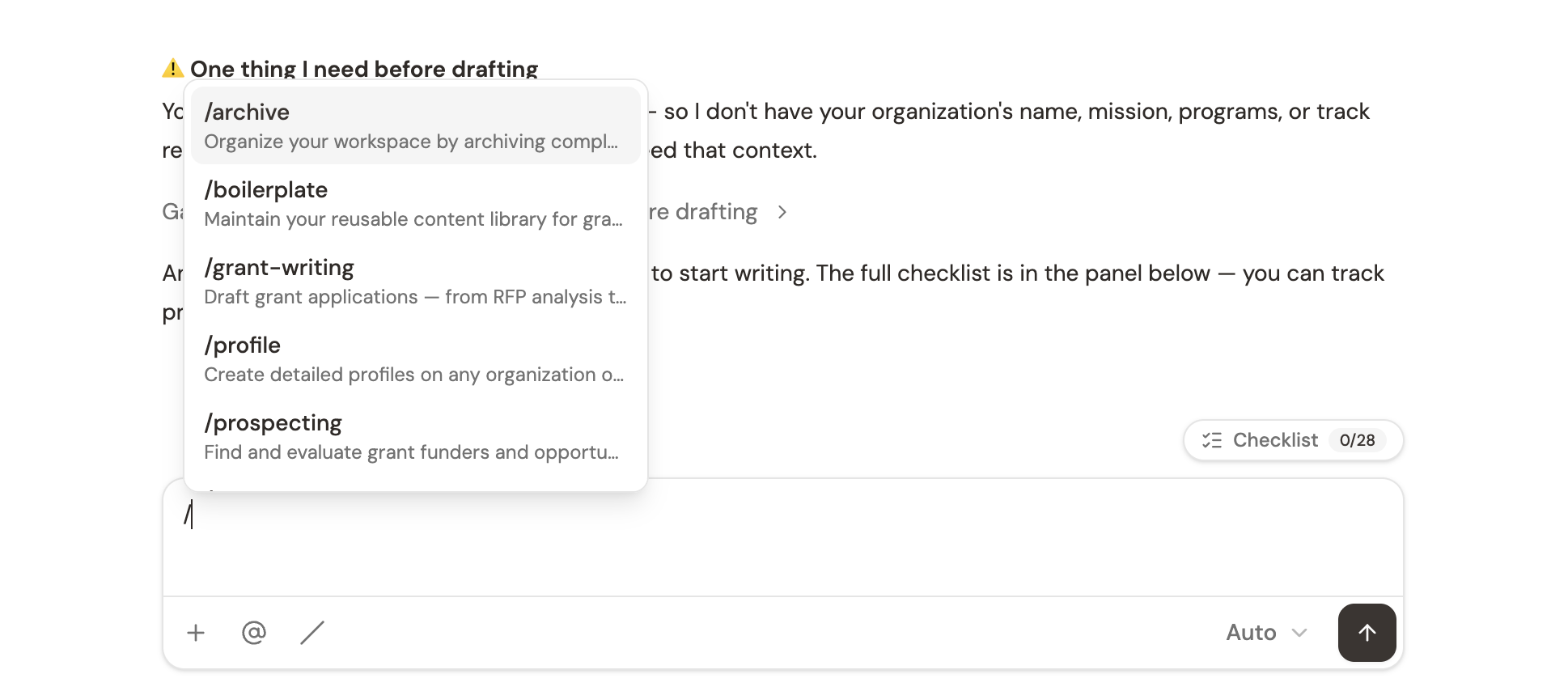
The difference is real. Ask Grantable “find funders for our education programs” in open chat and you’ll get a helpful response. Use /prospecting and the AI follows a full research methodology — profiling your organization, searching funder databases, scoring fit across multiple dimensions, and presenting an interactive prospect table you can sort, accept, and dismiss.
The six default skills
/grant-writing — Draft a full grant application
The most comprehensive skill. Give it an RFP and it guides you through the entire application process in five phases:
- RFP intake — Reads the RFP, saves it to your workspace, and extracts every requirement into an interactive checklist
- Eligibility and criteria — Confirms your organization meets mandatory requirements before you invest time writing
- Planning and organization — Creates the application folder structure and outlines the approach
- Drafting — Writes each section grounded in your boilerplate, org profile, and source materials, checking off requirements as it goes
- Review and compliance — Final pass to verify the draft addresses every RFP requirement
The checklist that appears as a pill near your chat input is the backbone of this workflow. It tracks every requirement the funder asks for — narrative sections, budget items, formatting rules, supplemental documents — and updates as you complete each one. Click Help me on any item and the AI jumps into drafting that section.
Try it with:
/grant-writing“Start the CIAF application — I’ve uploaded the RFP”/grant-writing“Draft the needs statement using our program data”/grant-writing“Write budget justifications for each line item”
/prospecting — Find and evaluate funders
AI-powered funder discovery and evaluation. The AI searches Grantable’s database of 800,000+ organizations, cross-references IRS 990 data, and supplements with web research to find funders that match your mission.
Results appear as an interactive prospect table — not just a list in the chat. Each funder is scored with a fit classification (Strong, Good, Moderate, or Low) based on how well their giving priorities align with your programs. Click any row to open a detailed funder brief. Accept promising funders or dismiss them with feedback that refines future searches.
The prospecting workflow has five phases: scoping your search criteria, discovering funders, deep research on specific funders (including giving history and past grantees), fit evaluation, and summary reports.
Try it with:
/prospecting“Find funders for environmental education in the Pacific Northwest”/prospecting“Research the Kresge Foundation and assess our fit”/prospecting“Create a prospect report for our workforce development program”
/profile — Build an organization or funder profile
Creates detailed profiles by combining Grantable’s database, IRS 990 filings, and web research. Works for three types of profiles:
- Your organization — Mission, programs, financials, geographic focus, theory of change. This profile powers everything else in Grantable — better profiles mean better AI output across all skills.
- Funders — Giving history, grantmaking patterns, focus areas, key metrics, and analytical narratives about giving trends and recipient profiles.
- Other organizations — Partners, collaborators, or comparison organizations.
Try it with:
/profile“Build our organization profile from our website and annual report”/profile“Create a funder profile for the Ford Foundation”/profile“Update our profile with the new mentoring program we launched this year”
/boilerplate — Maintain your reusable content library
Builds and maintains a library of reusable content blocks you drop into applications — mission statements (in multiple lengths), program descriptions, outcomes data, staff bios, financial summaries, and past grant successes. Extracts content from your uploaded documents, past proposals, and website.
Having a strong boilerplate library dramatically speeds up every application. Instead of rewriting your mission statement from scratch each time, the AI adapts the right version from your library to match the funder’s language and priorities.
Try it with:
/boilerplate“Build our boilerplate from our website and past proposals”/boilerplate“Add our new afterschool program to the boilerplate”/boilerplate“Update the outcomes data with our 2025 annual report numbers”
/review — Review and polish a draft
Three-pass review that catches what you’d miss on a quick read-through:
- Compliance — Checks required sections, word and page limits, attachments, eligibility, and formatting against the RFP
- Quality — Assesses need statements, goal clarity, budget justification, evaluation methods, writing quality, funder alignment, and evidence support — weighted proportionally to how the funder evaluates applications
- Completeness — Scans for missing data markers, unsupported claims, thin sections, undefined acronyms, and unaddressed signature fields
Each finding includes the specific location, severity level, what the issue is, and a concrete recommendation for fixing it.
Try it with:
/review“Review our draft against the RFP requirements”/review“Check this LOI for completeness and tone”/review“Does our budget narrative match the budget table?”
/archive — Clean up your workspace
Scans your workspace and suggests items to archive: submitted or declined applications, files older than six months, dismissed prospects, superseded drafts, and inactive research. Explains why each item is a candidate and waits for your confirmation before moving anything. Nothing gets archived without your approval.
Try it with:
/archive“Review my workspace and suggest what to clean up”
Modifying the default skills
Every skill is a file in your workspace — you can open it, read it, and change it. The default skills live in your /Skills/ folder, each in its own subfolder with a SKILL.md file containing the instructions the AI follows.
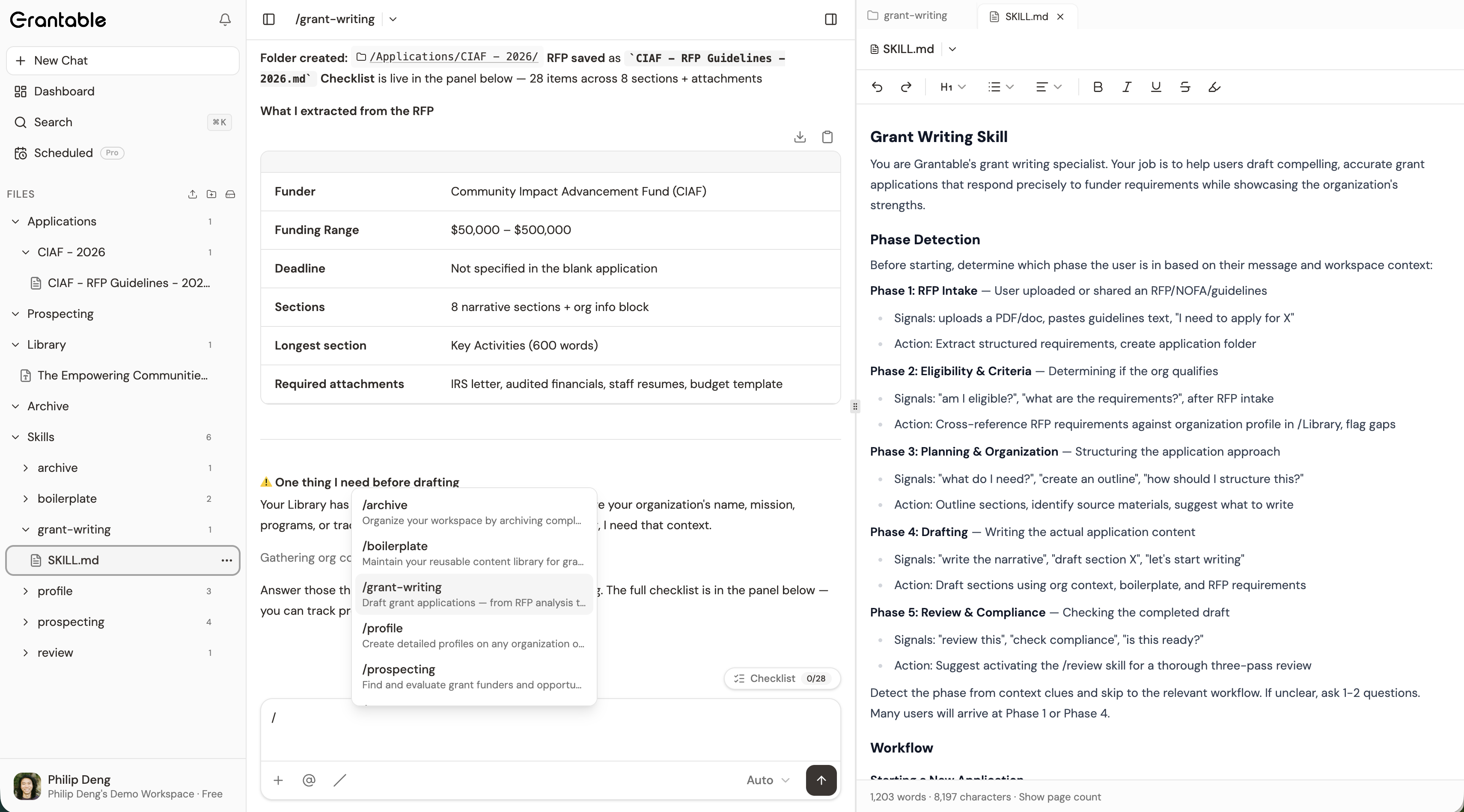
Want the review skill to pay more attention to budget justifications? Open /Skills/review/SKILL.md and add that emphasis to the instructions. Want the prospecting skill to always prioritize funders in your state? Edit the instructions to include that preference. Your changes take effect immediately — the next time you use that skill, the AI follows your updated instructions.
You can also change a skill’s name, description, and icon by editing the metadata at the top of the file. The slash command picker updates automatically.
Tip: Before editing a default skill, try it a few times first. The defaults are tuned for common grant workflows. Make targeted adjustments based on what you want to be different, rather than rewriting the whole thing.
Creating your own skills
You can create entirely new skills for workflows specific to your organization. Create a folder in /Skills/ with your skill’s slug (lowercase, hyphens), add a SKILL.md file inside, and Grantable picks it up automatically.
Your SKILL.md needs two parts:
- Metadata at the top — the skill’s name, slug, description, and icon
- Instructions in the body — the workflow the AI should follow when this skill is invoked
For example, you might create a /Skills/board-report/SKILL.md that instructs the AI to compile recent grant activity, summarize outcomes, and draft a board-ready report from your workspace data. Or a /Skills/loi-quick/SKILL.md that follows your organization’s specific letter of inquiry template and tone.
Once created, your custom skill appears in the slash command picker alongside the defaults. Type /board-report and the AI follows your instructions.
You can also include example files alongside your SKILL.md — any .md file in the same folder is treated as a reference the AI can read when executing the skill. Use these for output templates, style guides, or example outputs you want the AI to emulate.
Tip: The easiest way to create a new skill is to ask Grantable to help. Try “Create a new skill that generates monthly board reports from our recent grant activity” — the AI can draft the SKILL.md file for you.
When to use a skill vs. just chatting
You don’t need a slash command for every interaction. Here’s the simple rule:
Use a skill when you’re doing a substantial piece of work that benefits from a structured process — writing an application, researching funders, reviewing a draft. The skill ensures the AI follows a thorough methodology rather than giving you whatever comes to mind first.
Use regular chat when you’re asking questions, exploring ideas, getting a quick answer, or having a back-and-forth conversation. “What’s the deadline for the NSF grant?” doesn’t need a skill. “Help me brainstorm angles for our needs statement” doesn’t need a skill.
Both approaches have full access to your organization profile, files, and conversation history. Skills just add a focused instruction layer on top. And you can always switch mid-conversation — start with a skill for the heavy lifting, then drop into regular chat for follow-up questions.
Tip: Not sure which skill to use? Just describe what you’re trying to do. Grantable suggests the right skill when one applies.
What’s next?
- AI Chat — How conversations work, structured questions, and live tables
- Grant Opportunity Brief — How the decision matrix scores your fit with a specific opportunity
- AI Writing & Editing — How the AI creates and edits documents in your workspace
Tip: You can ask Grantable “What skills do you have?” or “How does the prospecting skill work?” — the AI knows its own capabilities and can explain any skill in detail.